





You built a website for search engine optimization, hit publish, and waited. But Google barely shows it. That feeling is rough, especially when you know your content is good.
Google Webmasters Tool is still the fastest fix for that problem. Today, it’s called Google Search Console (GSC), but people still search the old name. In 2026, Google Search Console lets you set things up fast, spot indexing problems, track search clicks, and turn reports into real SEO moves. You don’t need to be technical. You just need a simple routine and a few key screens.
Key Takeaways
- It’s free and built by Google.
- It monitors your site’s search health and visibility.
- It monitors mobile optimization to ensure your site works well on phones and tablets.
- It helps you find and fix indexing and page errors.
- It tracks performance (clicks, impressions, CTR, position).
- You can submit sitemaps so Google discovers pages faster.
- You can check backlinks and internal links.
- You can see keywords that already bring traffic.
- Setup usually takes under 10 minutes.
- It’s different from Google Analytics (you need both).
What Is Google Webmaster Tool (And Why It Still Matters In 2026)
Google Webmaster Tool (rebranded in 2015 as Google Search Console) is Google’s dashboard for how your site appears in search results. If you’ve ever typed “what is google webmaster tools” into Google, you were looking for exactly this, a place to see what Google sees.
The old name still sticks because it describes the job well. Google Webmaster Tools is the best option for SEO when you want answers, not guesses. Inside, you can check search traffic, indexing status, sitemaps, and link signals. You can also spot problems that block rankings, like pages that can’t be crawled or URLs Google chose not to index.
For official definitions and troubleshooting steps, keep Search Console Help bookmarked.
What you can learn inside it in one quick login
You can see which pages get clicks, and which queries show you in results. You can also see which pages are not indexed (meaning Google didn’t add them to its searchable library). Finally, you can confirm whether Google found and read your sitemap.
How Google Webmaster Tool Works Behind The Scenes
Google Search Console data follows a simple flow. First, Googlebot crawls your pages (it visits them like a scanner). Next, it indexes pages it can understand and trust (it stores them for search). Then it reports what happened in your account.
Think of it like a health report card for your site. It won’t “do SEO” for you, but it tells you what’s broken and what’s working. That’s why Google webmaster tools for website optimization still matter in 2026.
To see your data, you must verify ownership. Common methods include DNS verification (through your domain host), adding an HTML tag, or using an existing Google Analytics connection. After setup, many reports show data with a delay, often around 2 to 3 days, although some views update faster or slower depending on the report.
Verification options that are easiest for beginners
A Domain property covers everything on your domain (all subdomains, all protocols). DNS verification takes a few extra minutes, but it’s the best coverage.
A URL prefix property tracks only one version of your site. It’s faster to set up, and it works well when you control the site files. Just make sure you verify the right version, matching your preferred domain (like https:// and whether you use www or not), because mismatches cause confusing gaps later.

How To Set Up Google Webmaster Tool Step By Step (Takes Less Than 10 Minutes)
If you want to set up Google webmaster tools without overthinking it, do this once and you’re done.
- Go to Google Search Console.
- Sign in with the Google account you use for your business.
- Add property (domain or URL prefix).
- Verify ownership (DNS, HTML tag, or another option shown).
- Submit your sitemap.
- Start exploring data.
Your sitemap, typically in XML format, is usually at /sitemap.xml. Try yourdomain.com/sitemap.xml in a browser. If you use WordPress, most SEO plugins (like Yoast or Rank Math) generate a sitemap automatically, and you can copy the sitemap URL from the plugin settings.
This is a free google webmaster tool, so you don’t need a paid plan to get value fast.
Submit your sitemap the right way so Google finds new pages faster
A sitemap is a file that lists the pages you want Google to find. After you submit it, check the “Last read” date to confirm Google processed your sitemap. If you see sitemap errors, fix them first, because bad URLs waste crawl time. For requesting new crawls on specific pages, the console’s URL Inspection tool serves a similar function to the historical Fetch as Google feature.
For extra setup screenshots, this Google Search Console guide is a solid reference.
Related Article: Mastering Google Analytics 4 : A Comprehensive Guide
The Features You Will Use Most To Boost SEO In 2026
Performance report (find your clicks, keywords, and quick wins)
Clicks are visits from search, impressions are how often you showed up. CTR is the percent that clicked, Average CTR reveals your typical performance, and average position is your typical rank. Use filters like search queries, page, country, device, and date, then rewrite titles on pages with high impressions but low CTR.
URL Inspection tool (check indexing and request a recrawl)
Paste a URL into URL inspection to see if Google indexed it, validate structured data, and check if it can be crawled. After a major update, request indexing, but don’t spam requests. Focus on important pages like service pages, categories, and top blog posts.
Coverage report (fix errors before rankings drop)
This report separates indexed vs. not indexed URLs. Common causes include noindex, redirects, soft 404s, crawl errors, and Robots.txt blocks. Start with Errors, then Warnings, then Excluded, so you fix the highest impact issues first.
Sitemaps (prove your site structure to Google)
Success looks like “Submitted” and “Read.” If the count drops, check for broken URLs in the sitemap. Also update your sitemap when you add or delete many pages.
Core Web Vitals (page experience signals tied to rankings)
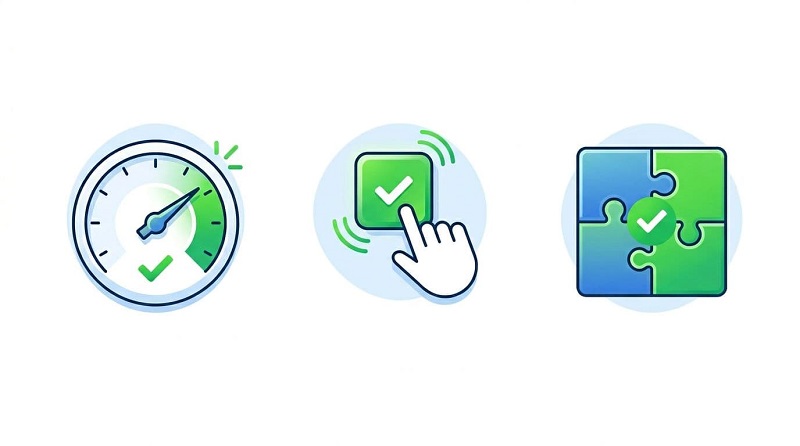
LCP is loading speed, INP is responsiveness, and CLS is layout shifts. Fixes often start with image compression and fewer heavy scripts. If you need a simple starting point, follow this guide on how to improve website speed.
Manual actions (know fast if you get penalized)
A manual action means a human reviewer flagged your site for policy issues. Common causes include spam links and thin content. Fix the problem, then request a review inside the report.
Links report (track backlinks and internal linking health)
You’ll see top linked pages, top linking sites, and anchor text. Watch for sudden drops or strange domains that don’t match your niche. Also use this report to find pages that deserve more internal links from your own content.
How To Use Google Webmaster Tool Data To Make Real SEO Improvements
Reading reports feels good, but action moves rankings. Set a weekly routine to check site performance that you can finish in 20 minutes.
First, open Performance and compare the last 28 days to the previous period. Next, find pages losing clicks, then refresh one thing (title, intro, or FAQ section). After that, check Coverage for new errors. Finally, review Core Web Vitals for any “poor” URLs to improve website performance and fix your worst offender.
In February 2026, the February 2026 Discover Core Update (Discover-only) made Discover traffic more sensitive to clickbait and thin pages. If you have the Discover tab, monitor it separately so you don’t confuse Discover drops with Search drops. For the basics that support all of this, keep SEO tips for beginners handy.
A simple scorecard you can follow each week
- Spot CTR drops on high-impression pages
- Fix new indexing errors
- Refresh one slipping page
- Recheck sitemap status if you published new pages
- Confirm you have no manual actions
Google Webmaster Tool Vs Google Analytics, What Is Different And Why You Need Both
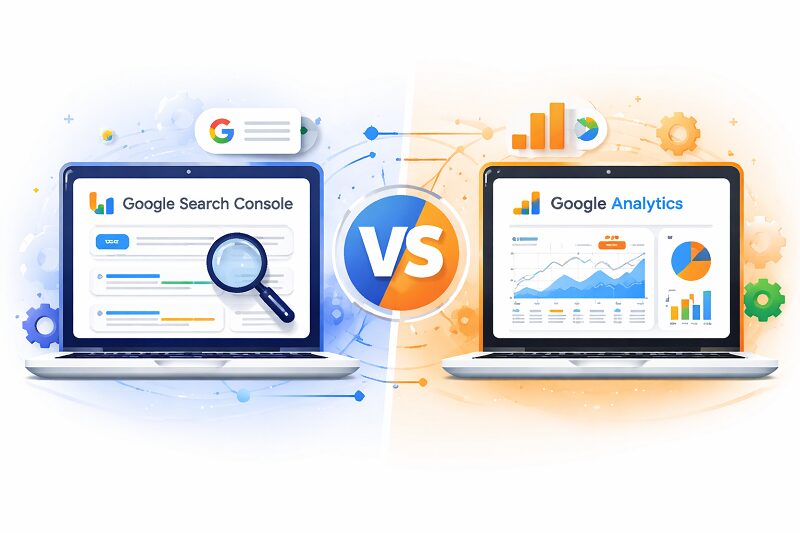
Beginners mix these up all the time. Both are free, and both are Google tools. Still, they answer different questions. Search Console explains what happened before someone lands on your site via search traffic, and Analytics explains what happened after.
What Google Webmaster Tool tells you before the click
It focuses on search visibility, indexing, and technical issues. You see impressions, average position in search results, and crawl errors, so you can fix access problems and improve snippets.
What Google Analytics tells you after the click
It tracks sessions, conversions, and user behavior on your pages. You learn what content sells, what pages lose people, and where traffic comes from. Here’s the simplest way to compare them:
| Question you’re answering | Google Search Console (Webmaster Tool) | Google Analytics |
| Are you showing up on Google? | Yes | No |
| Which queries bring traffic? | Yes | Limited |
| Are pages indexed and crawlable? | Yes | No |
| What do visitors do on your site? | No | Yes |
| Are you getting leads or sales? | No | Yes |
Search Console is like radar, it shows what’s approaching. Analytics is like a map, it shows what visitors did once they arrived.
Common Mistakes That Waste Your Time (And How To Avoid Them)
- Ignore Coverage errors, and you’ll keep publishing pages Google won’t index.
Fix: check Coverage weekly and clear errors first.
- Never submit a sitemap, and discovery stays slow.
Fix: submit /sitemap.xml and confirm it’s “Read.”
- Skip Core Web Vitals, and slow pages drag results down.
Fix: repair your worst templates first.
- Ignore security issues, and malware detection alerts will put your site at risk.
Fix: check Security issues weekly and resolve threats first.
- Overlook manual actions, and rankings can vanish overnight.
Fix: review that report monthly.
- Check once and forget, and you miss trend shifts.
Fix: compare periods every week.
FAQ About Google Webmaster Tool (Quick Answers)
1.Is Google Webmasters Tool free?
Yes. Google Webmasters Tool (now called Google Search Console) is completely free for any website owner.
2.What is the difference between Google Webmasters Tool and Google Analytics?
Google Webmasters Tool (Search Console) shows how your site appears in Google Search, including impressions, clicks, indexing status, and crawl issues. Google Analytics shows what visitors do after they arrive, such as sessions, conversions, and user behavior. You should use both.
3. How long does it take to see data in Google Webmasters Tool?
After setup, you often see initial data in 24 to 72 hours. Many Performance views show about 28 days of data by default, and your history builds over time.
4. Does Google Webmasters Tool help rankings on Google?
It does not directly raise rankings, but it helps you find and fix indexing problems, page experience issues, and search snippet opportunities. Those improvements can lead to better SEO results
5. Can Techeasify help set up Google Search Console for my website?
Yes. Techeasify can help you set up and verify Google Search Console, submit your sitemap, and create a simple routine to use the reports for practical SEO improvements.
Conclusion
If Google feels like a locked door, Google Webmasters Tool is the keyring. Use Performance to find quick wins, URL Inspection to push important updates, and Coverage to catch issues like security issues before traffic slips. Also remember the one-line truth: Search Console explains search visibility, and Analytics explains visitor behavior.
If you want help turning these reports into a clear plan, Techeasify can help you build trust signals like internal links and stronger content that holds up through updates like the February 2026 Discover change. Start by reading this guide on building SEO trust and authority, then contact Techeasify today to schedule a free consultation for search engine optimization.
