




Key Takeaways
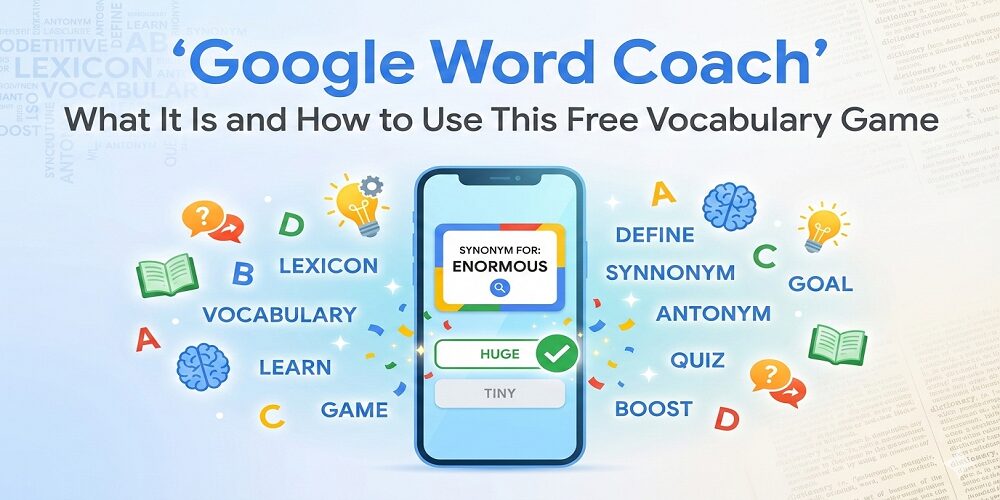
- Google Word Coach, the official game, is a free, gamified vocabulary tool that shows up in Google search results
- You can access it directly in search results, so there’s no app download
- You play quick multiple-choice quizzes (often in short rounds) to build word knowledge
- It’s useful for vocabulary improvement and light, basic grammar-adjacent practice
- The best part: it’s free, with no sign-up and no install
You learn a new English vocabulary word on Monday, feel proud for five minutes, then forget it by Wednesday. Sound familiar? Many vocabulary apps can help, but they also feel like a second job, logins, reminders, streak pressure, and long lessons when you only have two minutes.
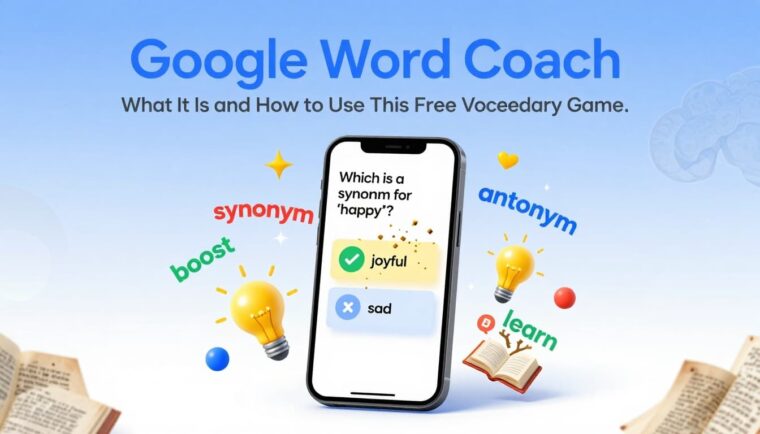
That’s why Google Word Coach is so refreshing, a handy vocabulary builder presented in a fun way. It’s a quick vocabulary quiz that appears right inside Google Search. You don’t need to download anything, and you don’t need an account. You just answer a couple of questions, learn from the feedback, and move on with your day.
In this guide, you’ll learn how it works, what you’ll see when you play, the best features, how to access it on mobile and desktop, plus FAQs and practical tips. Read on to discover how to make Word Coach a simple daily habit.
What Is Google Word Coach And How Does It Work?
Google Word Coach is a free vocabulary game built into Google Search results. It first rolled out in February 2018 to users in non-English speaking countries, mainly to make word learning feel lighter and more accessible, especially on mobile. It remains available in those regions as of January 2026, though it appears inconsistently depending on your query, device, and location.
Here’s the basic idea. You search for a word, a dictionary entry, or use the translate box, and sometimes even “Google Word Coach.” Other entry points like the translate box can also trigger the quiz card. Google uses machine learning to gauge word difficulty and decide when to show it. You tap “Start,” pick answers from multiple choices, and get instant feedback.
It’s simple on purpose. Word Coach isn’t trying to be a full English course. It’s more like keeping a small dumbbell on your desk. You can grab it, do a quick set, and go back to work.
If you want an outside walkthrough with extra screenshots, see this step-by-step Word Coach guide.
What you’ll see in a typical round
Most rounds feel short and punchy, often built around a 5-question flow. The questions are usually multiple-choice, and they tend to rotate between:
- word meaning or definition
- synonym and antonym picks
- basic word usage or context
- occasional image questions (more common on mobile)
After you answer, you get immediate feedback. If you miss it, Word Coach typically shows the correct option and a short explanation so you don’t just guess and move on. Image questions add a visual twist, especially for mobile users.
Also important: there’s no separate app required. You’re playing inside Google Search, so it behaves like a search result feature, not a standalone download.
What Google Word Coach is not
As an educational tool, Word Coach is not a complete language program. It won’t train speaking, pronunciation, or conversation skills. It also won’t replace deep grammar lessons, writing practice, or exam-specific study plans.
Think of it like a daily “word snack.” It works best when you pair it with real reading, listening, and writing. One round a day won’t make you fluent overnight, but it can keep vocabulary improvement moving forward when you’re busy.
Top Features That Make Google Word Coach Worth Your Time
Google Word Coach sticks because it removes friction. You don’t need to plan a lesson, create an account, or set up anything. You just play, learn, and stop whenever you want. Public, up-to-date usage numbers aren’t widely published, so it’s smarter to judge Word Coach by what you feel: speed, clarity, and consistency.
Interactive vocabulary quizzes that don’t feel like studying
A good vocabulary builder doesn’t just show definitions. It makes you choose. That tiny moment of recall (even if you get it wrong) pushes your brain to pay attention.
Word Coach does this well because the word challenge is short. You can play during a commute, while waiting for a friend, or between tasks. It’s a fun way to expand your vocabulary for language learning without “starting a session” in your head.
If you like the quiz format, you can also build your own word list from real search questions. A practical way is using AnswerThePublic for keyword-style question ideas and turning those into vocabulary builder themes (workplace words, school words, travel words).
Gamification that keeps you coming back
Word Coach feels like a word game because it gives you points and progress from round to round. Advance through levels as you play, striving for your highest score. The reward is small, but that’s the trick. Small wins are easier to repeat.
If you’re busy, motivation matters more than perfect planning. A two-minute round you actually do beats a 30-minute lesson you skip for three weeks.
Free access across devices, right inside Google Search
This is the headline benefit: it’s a free tool, with no sign-up required and no download. You can access Google Word Coach from a mobile browser, the Google app, or desktop search.
You do need internet access, since it runs inside Search. And the experience often feels best on mobile, because the quiz card is built for tapping. The levels get progressively harder, supporting expanding vocabulary over time.
Helpful explanations when you get an answer wrong
This part is easy to ignore, but it’s where learning happens. When you miss a question, don’t rush. Read the short explanation, then replay another round.
Treat each wrong answer like a signpost. It’s showing you what to learn next, not what to feel bad about.
For another quick access walkthrough from a different angle, check this Google Word Coach access guide.
How to use Google Word Coach step by step (mobile and desktop)
If you’ve never seen Word Coach, you’re not alone. It doesn’t appear for every search, every time. Use the steps below, and you’ll usually trigger it in under a minute.
- Open Google Search (Google app on your smartphone or any mobile browser).
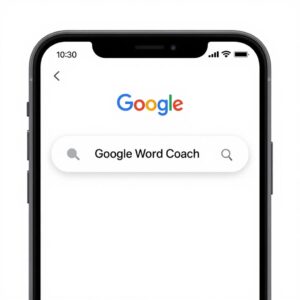
- Type “Google Word Coach” and search.
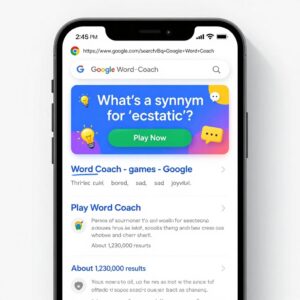
- If it doesn’t show, try a definition-style query like “meaning of benefit” or “synonym of quick.”
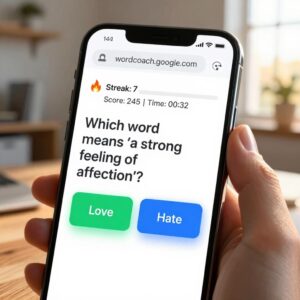
- Scroll the results until you see the Google Word Coach quiz card.
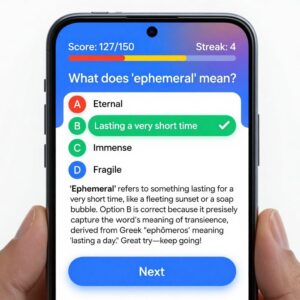
- Tap Start (or the first question) on Google Word Coach to begin.
- Choose an answer, then read the explanation before moving on.
- Finish the round, then tap Next round if you have time.
How to open it from Google Search in seconds
The fastest path is searching the tool name directly. If Word Coach still doesn’t appear, try switching your query style. “Meaning of” searches often trigger dictionary results, which is where Word Coach shows up most.
For even quicker access, add a shortcut icon to your home screen directly from your mobile browser.
Also check basics: your search language settings, your region, and your browser. Chrome tends to behave predictably, but it can work in other browsers too.
Note that you need an active internet connection to play online with Google Word Coach.
For a more narrative how-to with extra tips, you can reference this how to play Google Word Coach guide.
How to play your first game and learn more per question
Don’t aim for a perfect score on day one. Aim for attention. Pick the best answer, then pause for five seconds on the explanation, even if you were right.
A simple routine that works: 1 round per day, plus writing down one new word you didn’t know. That’s it. You’re building language skills through repetition, not intensity.
How to track progress even if you don’t have a formal dashboard
Word Coach shows your score while you play, but it doesn’t act like a full course platform with deep history and charts.
You can still track progress in a way that matters:
- Keep a short “new words” list in your notes app
- Screenshot your best score once a week
- Do a weekly self-check by using those words in 3 sentences
- Pick themes using a keyword research guide so your new words fit your goals (school, interviews, work emails)
Frequently Asked Questions About Google Word Coach
Is Google Word Coach really free to use?
Yes, it’s free. You’re not paying for the tool, and you don’t need to create an account to start playing. Google Word Coach appears inside Google Search results as an interactive quiz card focused on English vocabulary.
The only “cost” is your internet connection, since the game loads through Search. If you’re on mobile data, it may use a small amount of bandwidth, similar to loading a regular results page. If you want no surprises, use Wi-Fi.
Key point: it’s a free English tool you can use in seconds, without sign-up.
Does Google Word Coach work on all devices?
It works on most modern smartphones and computers because it runs in a browser or the Google app. Many people find it smoother on mobile, where the quiz layout is tap-friendly.
That said, availability can vary, especially in non-English speaking countries. You might see it on Android and not on iOS for a certain query, or see it on desktop one day and not the next. Location, language settings, and supported languages can also change what appears in search results.
Practical rule: if you have a browser and internet, you can usually access Google Word Coach, but it’s not guaranteed on every device and region.
Can you track your progress and see improvement over time?
You can track your session score while playing, but long-term progress tracking isn’t the main focus. There’s no reliable public promise of a permanent, account-based dashboard for everyone.
The better approach is simple tracking you control. Save new words, review them weekly, and test yourself by using them in writing. If you’re preparing for exams like IELTS, GRE, or TOEFL, group words by topic (education, business, science) so you build English vocabulary that matches your needs, particularly for IELTS success. IELTS aspirants, GRE test-takers, and TOEFL students often find it helpful for targeted practice.
Tip: consistency beats volume. Ten rounds spread across ten days usually sticks better than ten rounds in one day.
How is Google Word Coach different from Duolingo, Quizlet, or Memrise?
Google Word Coach is built for speed. It’s a quick vocabulary quiz inside Search that tests synonyms and antonyms, not a full course. Duolingo is stronger for structured lessons. Quizlet is great for flashcards you create. Memrise often includes audio and spaced repetition features.
Here’s a quick comparison:
| Tool | Free | Mobile | Gamification | Progress tracking |
|---|---|---|---|---|
| Google Word Coach | Yes | Yes | Yes | Limited |
| Duolingo | Yes (optional paid) | Yes | Strong | Strong |
| Quizlet | Yes (optional paid) | Yes | Medium | Medium |
| Memrise | Mixed (plan-based) | Yes | Medium | Strong |
Use Word Coach when you want quick vocabulary enhancement with synonym and antonym practice. Use the others when you want full lessons, audio practice, or a structured path.
Why doesn’t Google Word Coach show up sometimes?
This is common. Word Coach is a Search feature, and Search features can appear or disappear based on your query type, language settings, region, and device.
Try these fixes:
- Search a common word + “meaning” (example: “meaning of improve”, like a dictionary lookup).
- Set Google language to English in settings.
- Use Chrome or the Google app, then retry.
- Search the exact phrase “Google Word Coach” again to improve English.
If it still doesn’t appear, don’t assume it’s gone. It may just not be triggered for that moment or query.
Conclusion
If you want to improve English vocabulary without adding another app to your phone, Word Coach is a smart pick. You open Google search results, answer fast quiz questions on synonyms and antonyms, learn from feedback, and stop whenever you want. That makes it a fun way to stay consistent, even on busy days.
The real win is habit. One quick quiz round today, one tomorrow, and you start noticing synonyms “pop out” while reading, working, or watching videos. Google Word Coach works best when you treat it like a daily warm-up, not a full workout. This vocabulary builder shines for students in language learning, building synonym knowledge through consistent language learning.
If you also want your learning tools and content to reach more people, strong search visibility matters. Use Techeasify’s SEO growth roadmap to build steady traffic, and tighten your pages with guidance on high-impact on-page elements.
Ready to integrate smart digital tools into your strategy? Discover how Techeasify helps you turn useful experiences (like quizzes, guides, and learning content) into real engagement. Take one clear next step: request a free consultation and map out your plan. Explore their digital marketing services or contact Techeasify to schedule a free consultation.
