Table of Contents
ToggleKey Takeaways
- “Search Google or Type a URL” is the prompt shown in your browser’s address bar (Omnibox), allowing you to search the web or open a website directly.
- Type a complete URL (such as
youtube.com) when you know the exact website to reach it faster without search results. - Use Google Search when you don’t know a website’s address or need to find information, products, services, or answers.
- Modern browsers support multiple search methods, including website search, image search, voice search, autocomplete, URL entry, and highlighted text search.
- The browser automatically decides whether your input is a search query or a web address, making browsing faster and more convenient.
- Always verify website addresses and use HTTPS to reduce the risk of phishing, fake websites, and typing mistakes.
Ever notice the tiny prompt that says “Search Google or type a URL” at the top of Chrome? That single bar, called the Omnibox, saves you time every day. If you’re a busy marketer, a small business owner, or just someone who wants faster browser navigation, this feature can cut steps and reduce friction. You search and navigate from one place, which boosts focus and keeps your hands on the keyboard.
Use it to jump straight to a site, run a quick query, or even do simple math. Done right, it improves productivity and can support smarter SEO habits. In short, it blends Google Search and direct navigation in one clean move.
What Does “Search Google Or Type A URL” Mean?
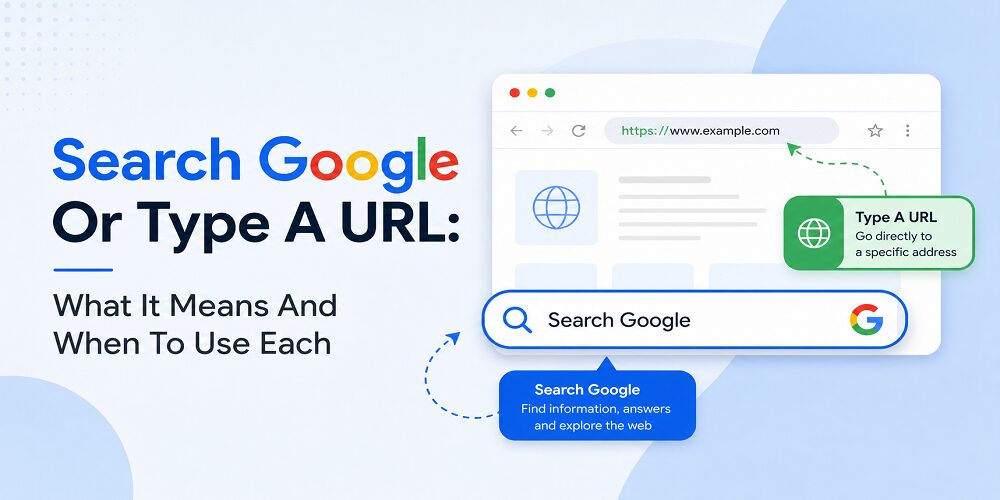
The placeholder text “Search Google or Type a URL” is Chrome’s way of telling you what you can do in the address bar. It’s not an error or a problem. Chrome combines your search bar and address bar into one field, which means you can use it for two different things.
You have two options:
Search using keywords. Type words or phrases related to what you’re looking for, and Chrome will send your search to Google. For example, typing “best pizza near me” will search Google for that phrase.
Enter a complete website address. Type a full URL like “amazon.com” or “https://www.techeasify.com/” and Chrome will take you directly to that website.
Chrome automatically figures out what you’re doing. If you type something that looks like a website address (with a domain name), Chrome treats it as navigation. If you type regular words or a question, Chrome treats it as a search query and runs it through Google.
This unified approach saves space and keeps your browser cleaner. Instead of having a separate search box and address bar like older browsers, Chrome does both in one place. The placeholder text disappears the moment you start typing, and Chrome handles the rest automatically.
What Is The Omnibox And How Does Search Google Or Type A URL Work?
Think of the Omnibox as Chrome’s smart address bar. You can search or enter a website address in the same spot. Type “best coffee shops” in the search bar and you get search results. Type “techeasify.com” and you go right to the site. No extra clicks. No mode switching.
Chrome uses signals to interpret user intent. If your input looks like a domain, it tries to go there. If it looks like a phrase, it runs a Google Search. You also get Google Autocomplete, which suggests search queries and URLs based on your browsing history, popular sites, and what lots of people search for. These suggestions speed you up and reduce errors.
The address bar now offers more than search. You can run quick conversions and calculations, like “34 usd to inr” or “150*1.18.” It also corrects common typos, which prevents wrong searches that waste time. Voice input is available too, so you can speak a query or a site name when your hands are full.
If you want to go deeper on what the address bar supports, the developer docs show how it can accept and route commands from extensions, which hints at how flexible the system is. Check out the official reference for the Chrome omnibox API. For a practical walkthrough of everyday tricks, this guide on everything you can do from the Chrome address bar is a solid companion.
Distinguishing Between Searches and Direct URLs
The address bar reads patterns. Words and phrases become searches. Domain-like entries enable direct navigation to a site via DNS resolution.
- Type “pizza” and you get search results.
- Type “wikipedia.org” and you land on Wikipedia.
- Type “cnn.com economy” and Chrome will suggest both the site and search results.
This split saves you steps, especially when you repeat common paths. For beginners, it removes friction and confusion. You do not need to remember different boxes for different actions. One bar handles both.
Autocomplete and Smart Suggestions in Action
Autocomplete predicts where you want to go. It learns from your browsing history and syncs across signed-in devices, so your laptop and phone help each other. In 2026, Chrome also surfaces broader suggestions, including helpful prompts tied to what you are viewing. Reports point to smarter suggestions and tighter ties with Google’s Gemini for quicker answers and summaries in the browser. You get speed plus context, which pays off in busy workdays. For a plain-English overview of everyday address bar benefits, this explainer on how “Search Google or type a URL” works is helpful.
Want Help Improving Your SEO Strategy?
If you want better visibility in Google, smarter keyword targeting, or a website that supports both users and search engines, our team can help.
Types of Searches You Can Perform From Your Browser
Modern browsers like Chrome, Edge, Firefox, Safari, and Brave give you multiple ways to search and navigate from one address bar. You’re not limited to just typing a website address or a Google search. These features help you find information, discover websites, and save time while browsing. Learning what’s possible makes your browsing faster and easier.
- Search Website
You don’t need to know the exact website address. Type the website name or topic in your address bar, and the browser displays relevant search results. This helps you find the correct website when you’re unsure of the exact URL. For example, typing “online shopping stores” shows multiple options to choose from.
- Image Search
You can search using pictures instead of words. Upload an image or use reverse image search to find similar images, identify products, or discover where a photo came from. Right-click any image on the web and select “Search image with Google.” This is useful for finding product sources, identifying places, or locating similar designs.
- Voice Search
Speak your search instead of typing. Tap the microphone icon in your address bar and say your question out loud. The browser understands your words and searches for results. Voice search is especially useful on mobile devices when typing is inconvenient or your hands are full.
- Autocomplete Prediction
As you type, your browser suggests websites, search queries, and previously visited pages. These suggestions appear in a dropdown list. Autocomplete speeds up browsing by finishing common searches for you. Just click or tap a suggestion instead of typing the whole thing.
- URL Entry
Entering a complete website address like “amazon.com” takes you directly to that website without showing search results. Use this when you already know the exact website. It’s the fastest way to reach a specific site.
- Highlight Text Search
Found an unfamiliar word or name on a webpage? Highlight the text, right-click (or long-press on mobile), and select “Search.” The browser searches that exact phrase instantly. This saves time researching without manually typing into the address bar.
Use these methods to browse smarter
Knowing these browser search methods helps you navigate the internet more efficiently. Whether you’re searching for information, discovering new websites, or visiting a specific site directly, you have options. Pick the method that fits your situation and browse faster.
Do All Browsers Show “Search Google Or Type A URL”?
Not every browser uses Chrome’s exact wording, but they all work the same way. Modern browsers combine the search bar and address bar into one unified box. The functionality is identical across all browsers.
How different browsers handle it
Google Chrome shows “Search Google or Type a URL” because Google owns Chrome. Microsoft Edge displays similar text but defaults to Bing instead of Google. Mozilla Firefox uses comparable language. Safari, Apple’s browser, shows a combined search and address bar too. Even newer browsers like Brave and Opera follow the same pattern.
The wording changes slightly, but the concept stays the same. Every modern browser lets you search or navigate in one box.
Here’s what you’ll see in each browser:
| Browser | Unified Address Bar | Default Search Engine | Type URL Supported |
| Chrome | Yes | Yes | |
| Edge | Yes | Bing | Yes |
| Firefox | Yes | Google (default in many regions) | Yes |
| Safari | Yes | Yes | |
| Brave | Yes | Brave Search | Yes |
| Opera | Yes | Yes |
Why all browsers work this way
Chrome popularized the unified address bar, and other browsers copied the idea because users liked it. Having one box instead of two is simpler and faster. Every major browser realized this was the better approach.
The only difference is the default search engine. Chrome uses Google, Edge uses Bing, and Brave uses its own search engine. But they all let you type a website address or search keywords in the same place.
Everyday Benefits Of Using Search Google Or Type A URL
If you run a small business or juggle many tabs, the Omnibox is a quiet force multiplier. You cut clicks, skip slow homepages, and reach tools faster. Over a week, that time adds up.
Directly type a URL to support better user experience on your own site. Clean, memorable URLs help repeat visitors come back and move across pages with less friction. That signals quality, which often aligns with better SEO. If you want designs that make clear, scannable URLs feel natural, explore how our web design services focus on structure and navigation that reduce confusion: our web design services.
Boost Your Productivity with Faster Browsing
Use the Omnibox as your command center. A few examples you can try today:
- Type a URL to jump to tools: “drive.google.com,” “analytics.google.com,” or “ads.google.com.”
- Run quick checks: “site:yourdomain.com contact” to find your contact page.
- Do instant math or conversions: “256/8,” “2.5 kg to lb,” or “IST to PST.”
- Keep context: Start typing a frequent site, then arrow down to the exact page from your history.
Small gains in speed stack. Fewer clicks, fewer misfires, more clarity.
Avoid Common Mistakes and Save Time
Typos derail searches and waste minutes. The Omnibox quietly fixes many of them with remarkable accuracy and still gets you to the right place. It also suggests likely results based on your past behavior. If you often visit a client portal, two or three letters might be enough to land there. This is especially useful if you are new to optimization or still building your daily browser routine.
Apply Search Google Or Type A URL To SEO And Marketing Strategies
Use the Omnibox as a quick SEO console with impressive flexibility. You can test ideas, scan competitors, and validate keywords without opening new tools. Incorporating search operators in the intro to your workflow allows for efficient search refinement right from the start. For a broader strategy view beyond these quick wins, take a look at how we approach audits and tactics in our SEO services. When you are ready to deepen your paid search setup, this practical guide to Google Ads Best Practices is a great next read. If design performance is your focus, pair your SEO efforts with Responsive Web Design Tips to improve site speed and engagement.
Leverage Search Operators for Keyword Research
Simple operators can save you time:
- Quotes: “best hiking boots” finds the exact phrase.
- Minus: running shoes -nike excludes a brand.
- Site: site:example.com “pricing” finds a term on a domain.
- Intitle: intitle:“how to” productivity narrows to titles.
Type these straight into the Omnibox as a search query. You get fast, focused search results from Google Search that you can copy into your notes. This is ideal when inspiration strikes mid-task and you’re diving into keyword research.
Enhance Competitive Analysis with Site: Operator
Scan a competitor’s content in seconds:
- site:competitor.com “compare”
- site:competitor.com “pricing”
- site:competitor.com intitle:guide
You will spot gaps you can fill. You can also gauge how they structure pages and which topics they repeat. A clear mental map helps you plan better pages around keywords and a cleaner URL structure. For a broad overview of how the Omnibox routes queries and actions, this short read on what happens behind the prompt adds context.
Improve Your Search Visibility
Want help making your website easier to find on Google? Our SEO team can help you improve rankings, traffic, and user experience.
Quick Comparison: Search Vs Direct URL And SEO Impact
The choice between searching Google and typing a URL depends on what you’re trying to do. Both methods work, but they’re built for different situations.
When you search Google, you ask the search engine to find websites matching your keywords. Google returns a list of results and you click the one that looks right. This works best when you don’t know the exact website or you’re looking for information.
When you type a URL, you go directly to a website you already know. You skip Google entirely. Chrome takes you straight there. This is fastest if you know the website’s address.
Here’s how they compare:
| Action | What You Do | Speed | Typical Use Case | SEO Impact on Your Site |
|---|---|---|---|---|
| Typing a URL | Enter a full website address or path | Fastest | Direct access, return visits, client portals, dashboards | Often reduces bounce rates, encourages deeper sessions |
| Branded search | Type your brand, hit Enter | Fast | When you forget the exact URL | Strengthens brand signals if users click your result |
| Generic search | Type a topic or question | Medium | Discovery, research, ideas | Helps shape content strategy based on search intent |
| Site search operator | Use site:domain.com keyword | Fast | Competitor and gap analysis | Guides on-page improvements and internal link planning |
When searching is better:
Use Google Search when you don’t know the exact website. Looking for “Best Digital Marketing Agency? Search is your best bet. Google shows multiple helpful websites, videos, and articles. You pick what looks useful.
When typing is better:
Type a URL when you already know the site. Checking email? Type “gmail.com.” Going shopping? Type “target.com.” It’s one action instead of three.
SEO Impact: Why This Matters for Websites
When users search Google, websites compete to appear in results. High rankings mean more visibility and clicks. This is why SEO matters for businesses.
Direct URL traffic is valuable too. These users already know your site exists and decided to visit. Direct traffic signals to Google that your site is trustworthy and popular, improving your rankings.
Most websites need both. Rank well in Google searches to attract new visitors. Build a loyal audience that types your URL directly for repeat visits.
Simple Infographic Idea
Title: One Bar, Two Superpowers Panels:
- Search: “best coffee beans” with a results preview icon.
- Navigate: “URL: yourbrand.com/pricing” with a direct arrow to the page. Footer: “Fewer clicks for speed, better focus, smarter SEO.”
Frequently Asked Questions About Search Google Or Type A URL
What Happens If You Type Something That’s Both a URL and a Search Term?
Chrome usually defaults to search, but it shows possible site matches below. If you have visited a matching URL before, it appears in suggestions so you can arrow down and go there.
Can You Use Search Google or Type a URL in Other Browsers?
Yes. Other browsers like Firefox and Edge have similar address bars that blend search and URLs. Chrome’s Omnibox is often the most feature-rich browser, with strong autocomplete and extra shortcuts. For a helpful overview of what is possible, see this guide to address bar power tips.
How Does Voice Input Enhance This Feature?
Press the microphone icon in the Omnibox on supported devices, then speak your query or a site name. It helps when you are on the go or want hands-free browsing.
Does Using the Omnibox Affect Your Privacy?
You control what syncs to protect your security. You can pause history, clear past activity, and adjust suggestion sources in Chrome settings to minimize phishing risks and enable safe browsing. Use a guest profile when you want a clean slate.
What’s New in 2026 for Search Google or Type a URL?
Chrome has expanded smart suggestions and improved typo fixes. You will see broader predictions, tighter ties with AI features, and more context-aware prompts while you browse. For background on how the Omnibox supports rich actions, the Chrome omnibox API sheds light on its capabilities.
How Can You Customize Autocomplete Suggestions?
Go to Settings in your browser, then adjust search engine, sync, and autocomplete options for better security. If Chrome keeps suggesting an old path from your browsing history, delete it. Start typing the entry, highlight it in the dropdown, and press Shift+Delete.
Conclusion
The search bar’s “Search Google or type a URL” prompt is not just a hint for how to type a URL. It is a workflow shortcut that trims clicks, guides faster research, and supports cleaner site habits. Use direct access for speed, use operators for insight, and keep your structure simple so users remember your pages. Ready to tighten your site experience so people find what they need faster? For custom designs that make typing intuitive URLs and reduce bounce, explore our web design services. If you want a broader plan that connects browsing behavior with Google Search tactics, rankings, and conversions on search engines, reach out for a free SEO audit and subscribe to our newsletter for weekly tips.