





Key Takeaways
- People Also Search For shows related searches after you return to Google.
- It often appears right after you hit the back button.
- It reveals content gaps your page may not cover yet.
- You can collect PASF terms manually, then validate with SEO tools.
- Add PASF ideas as sections, FAQs, and supporting pages to grow rankings.
You Google something, click a result, then hit the back button. Suddenly, a new box appears below the search result you just visited. People Also Search For is that box, and it is one of Google’s clearest hints about what searchers want next.
In this guide, you’ll learn what PASF is and what triggers it. You’ll also see how it looks on desktop vs mobile, and how it differs from People Also Ask. Then you’ll get a simple workflow, plus tools you can use to collect and apply PASF terms.
What Is “People Also Search For”? (PASF Explained)
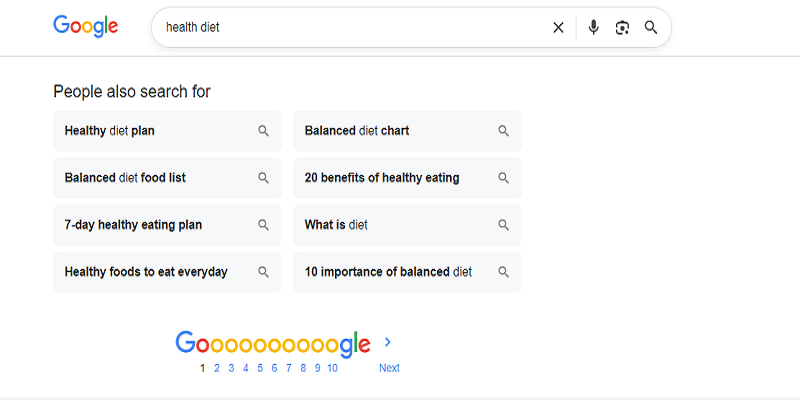
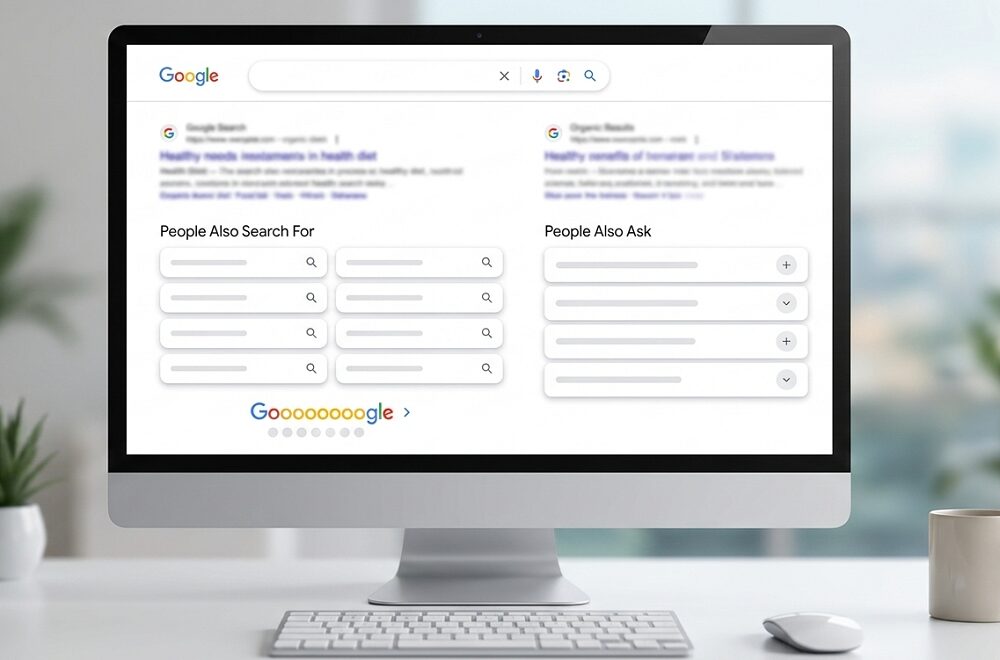
People Also Search For (PASF) is a Google SERP feature that suggests related searches. These suggestions help you continue your search when you did not find the perfect answer on the page you clicked.
PASF is not the same as People Also Ask (PAA). PASF shows search terms. PAA shows question boxes that expand with short answers.
PASF often appears after a common behavior: you click a result, scan the page, then return to Google (usually with the back button). At that moment, Google may show a small list of related searches under the result you visited.
When you enter a web address or search term in the browser address bar, Google tracks related searches, patterns, and refinements across many users. That is why PASF suggestions often match the next thing you were about to search. If you want more examples and use cases, this breakdown of how PASF can support SEO ideas is a helpful reference.
How Does “People Also Search For” Work?
PASF usually appears when Google sees a “back-click” pattern. You click a result, then quickly return to the SERP. Google assumes you still need help. It offers related searches to keep you moving.
These suggestions come from search patterns across many users. They can change by device, location, and query wording. They can also shift over time as searches change.
Here’s the trigger as a quick visual flow:
Step 1: User types query
Step 2: Clicks a result
Step 3: Returns to Google (back button)
Step 4: PASF box appears under the clicked result
Google does not publish “PASF rules” for creators. But Google’s general guidance stays steady: create helpful content that meets the intent, because search features react to what people do next.
People Also Search For On Desktop Vs Mobile
On Desktop
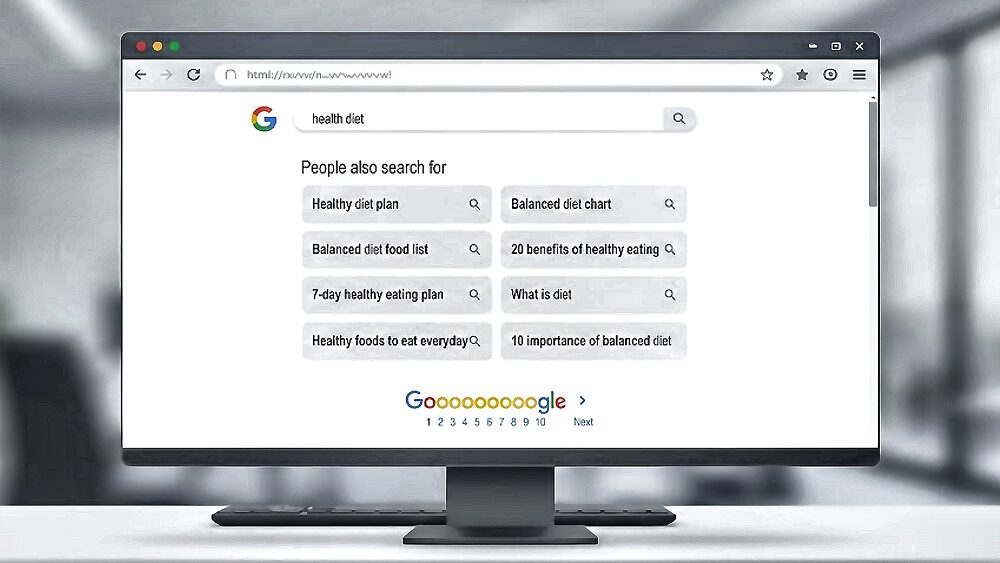
On desktop, PASF is often easier to spot. You have more screen space. After you hit back, look under the result you just visited. If PASF triggers, you may see a related searches box right there.
Desktop also makes testing faster. You can open multiple results in new tabs. You can compare layouts and terms side by side. This helps when you want to collect PASF ideas for content planning.
On Mobile
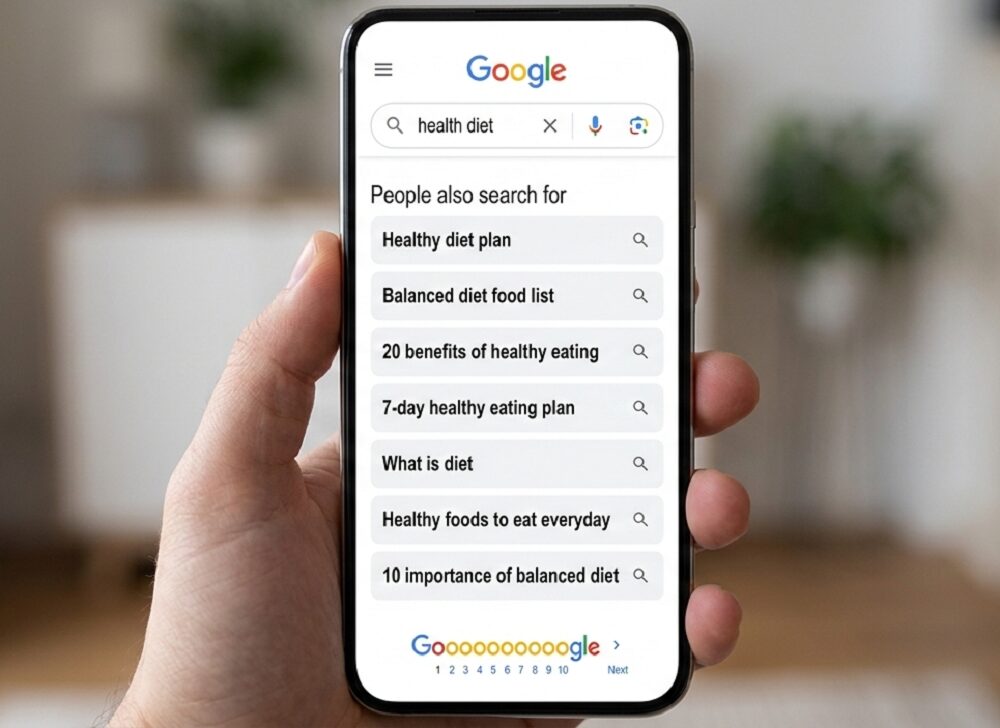
On mobile, PASF can look like chips, cards, or a horizontal scroll row. It may also sit lower on the page. Ads, map packs, and rich results can push it down.
When you test PASF on your phone, do this:
- Click a result from the SERP.
- Tap back to return to Google.
- Scroll a bit under the result you clicked.
- Look for chips or a small related search row.
People Also Search For Vs People Also Ask — What’s The Difference?
| Comparison point | People Also Search For (PASF) | People Also Ask (PAA) |
| Trigger | Often after a back click | Often appears immediately on the SERP |
| Format | Related search terms | Expandable questions with short answers |
| Purpose | Helps refine or continue the search | Helps answer sub-questions fast |
| Location | Under the clicked result (often) | Middle of the results page (often) |
| SEO use | Find adjacent topics and content gaps | Build FAQs, headings, and direct answers |
Both features can guide your content plan. They just do it in different ways. PASF is great for “next searches.” PAA is great for “next questions.”
For a deeper strategy angle, see these practical PASF uses for content planning.
Purpose, Features, And Importance Of PASF For SEO
Purpose
Google wants you to find what you need without starting over. PASF helps by offering common follow-up searches. For SEO, PASF shows topic connections Google often sees. It can act like a quick map of related angles and subtopics.
Features
PASF often:
- Appears as clickable chips or short search terms.
- Updates based on search behavior.
- Matches intent shifts (learn, compare, fix, buy).
You should treat PASF like a clue, not a command. Use it to guide what you cover next.
Importance for Your Blog
PASF can help you:
- Spot content gaps fast. You see what people search after reading.
- Build topical coverage. That supports EEAT signals over time.
- Find long-tail keywords that are easier to target.
- Match real intent changes, not just your guess.
It also ties into how people behave when they type things into the address bar. Some people want a site. Others want answers. PASF mostly shows up in the “I want answers” mode.
How To Use “People Also Search For” For SEO — Step By Step

Use this workflow when you plan a new post, refresh an old one, or audit a page that is not improving.
Step 1: Search Your Target Keyword on Google
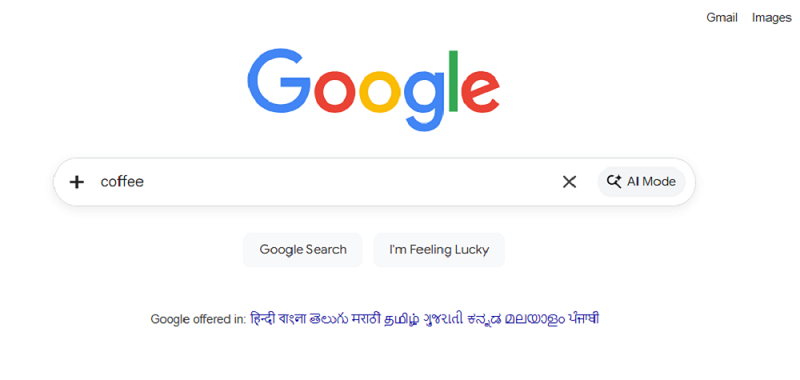
Open Google and type your main keyword. Hit enter and scan the results.
Step 2: Click Any Search Result
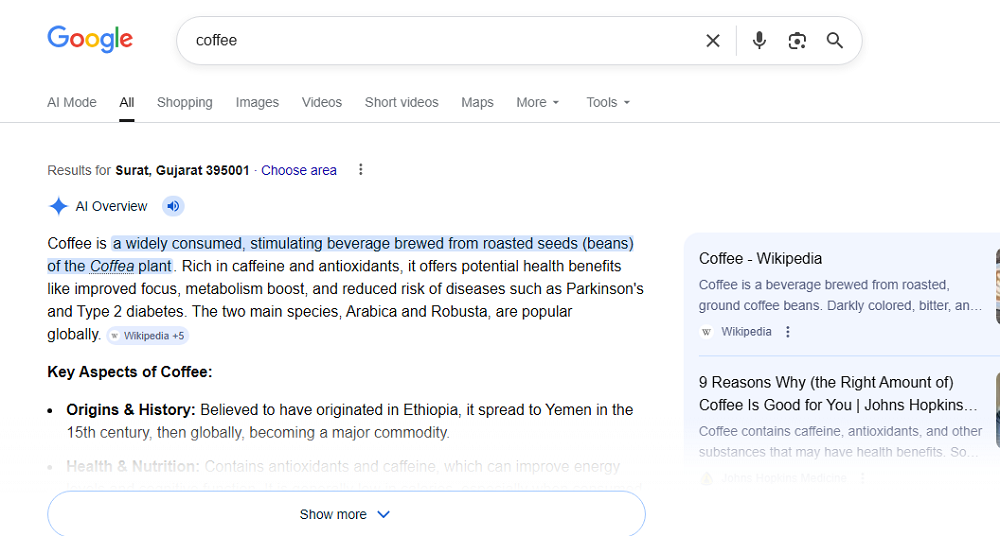
Click a result that seems close to your topic. It can be yours or a competitor’s.
Step 3: Hit the Back Button
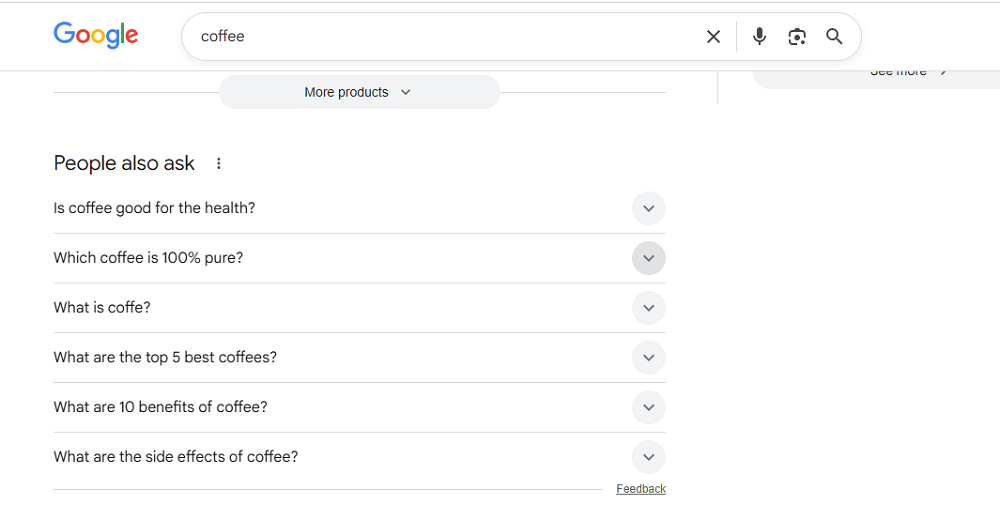
Press back to return to the SERP. Now look under the result you clicked.
Step 4: Screenshot or Note the PASF Keywords
Write down every PASF term you see. Save them in a sheet with the page URL and date.
Step 5: Plug PASF Keywords Into Your Content
Add the best PASF terms as:
- New H2 or H3 sections
- A short FAQ block
- A separate supporting post (if the term is big)
A quick rule: do not force every PASF term into one post. If a term has its own intent, give it its own page. Then connect pages with internal links.
Step 6: Track Rankings
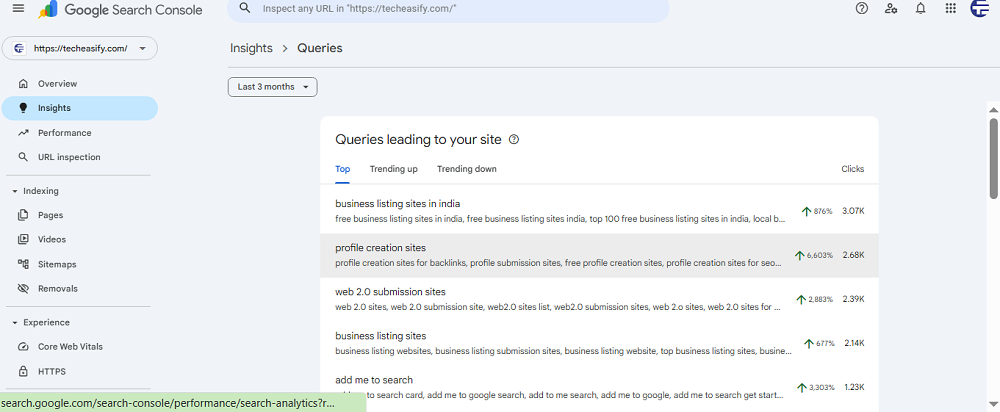
Use Google Search Console or a rank tracker to watch clicks, impressions, and queries.
Best Tools To Find “People Also Search For” Keywords
You can start with Google alone. Tools help you confirm patterns and scale your research.
1. Google Search itself (Free)
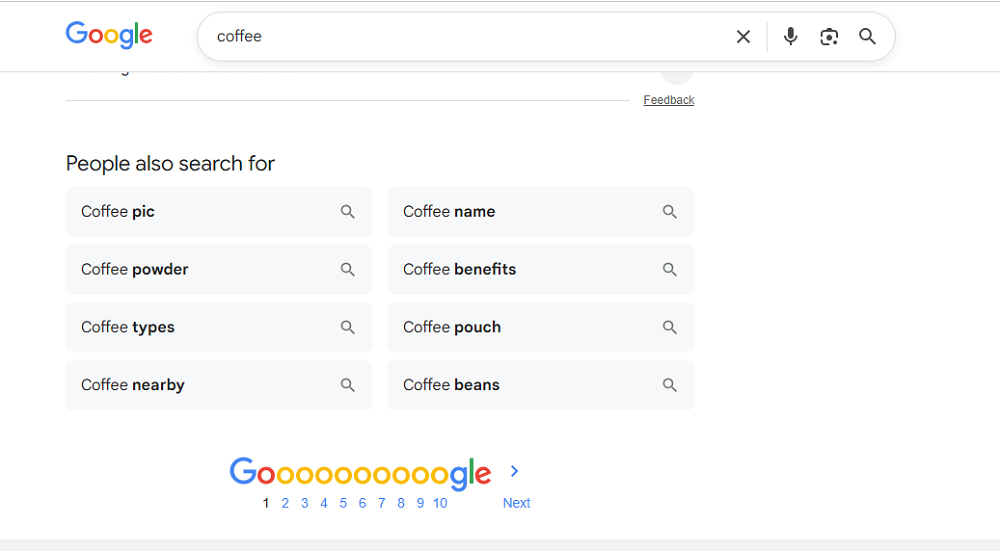
Best for seeing PASF in the real SERP. Use the back button method.
Keywords Everywhere (Chrome extension, Freemium/Paid)
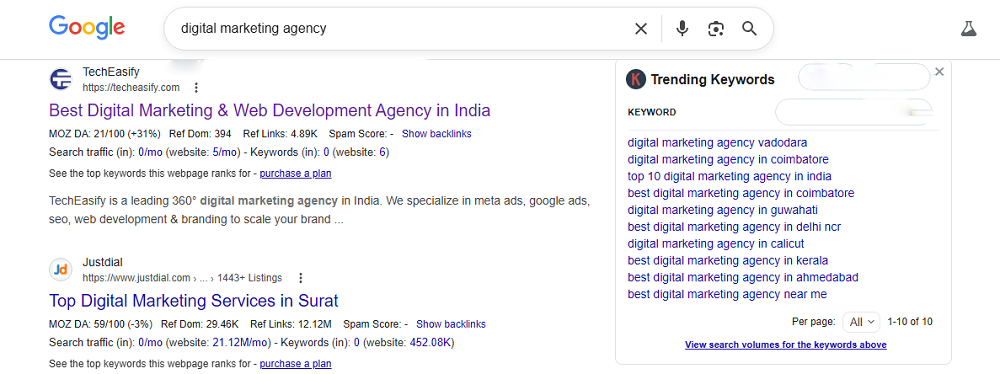
Helpful overlays for related terms and quick metrics.
Ahrefs (Paid)
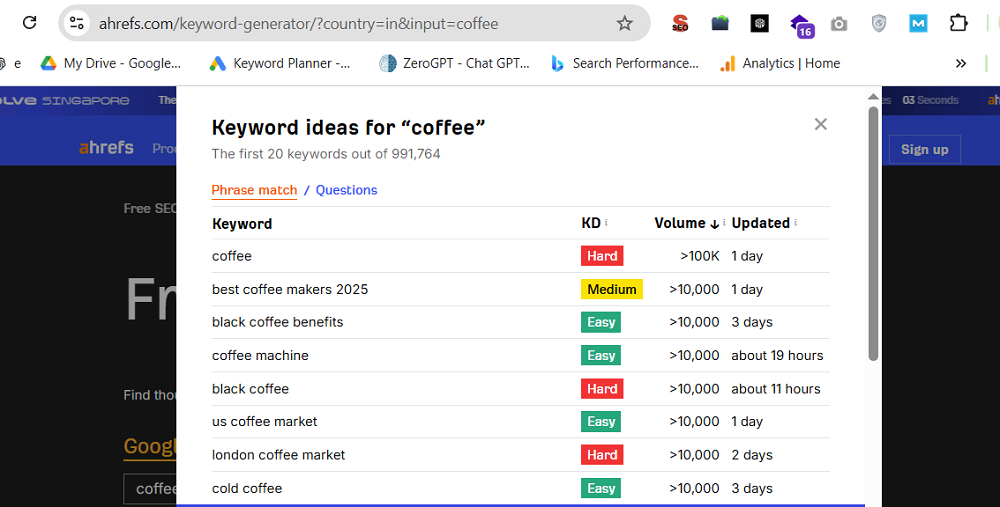
Use “Also rank for” style reports and competing pages to find related angles.
Semrush (Paid)
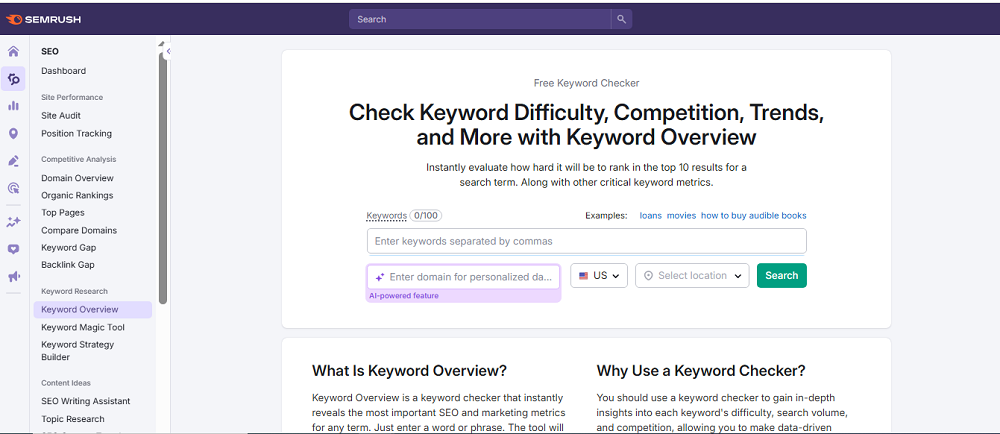
Great for keyword grouping and content gap checks.
Google Keyword Planner (Free with Google Ads account)
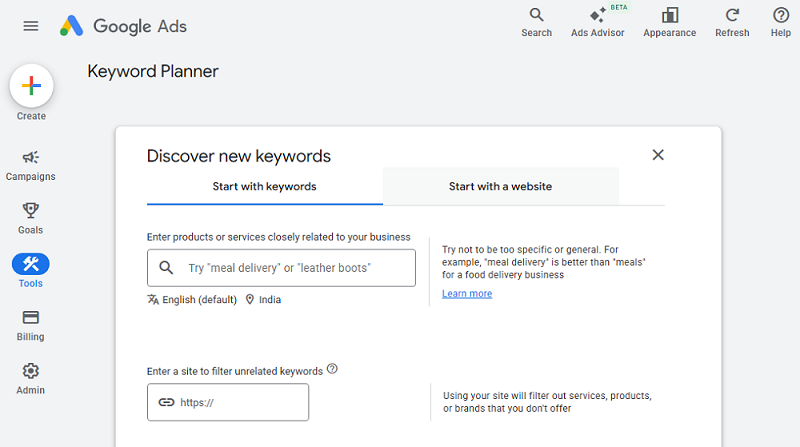
Helps you discover related keyword ideas and rough search volume ranges. Best for validating PASF terms and finding close variants before you write.
AlsoAsked.com (Freemium)
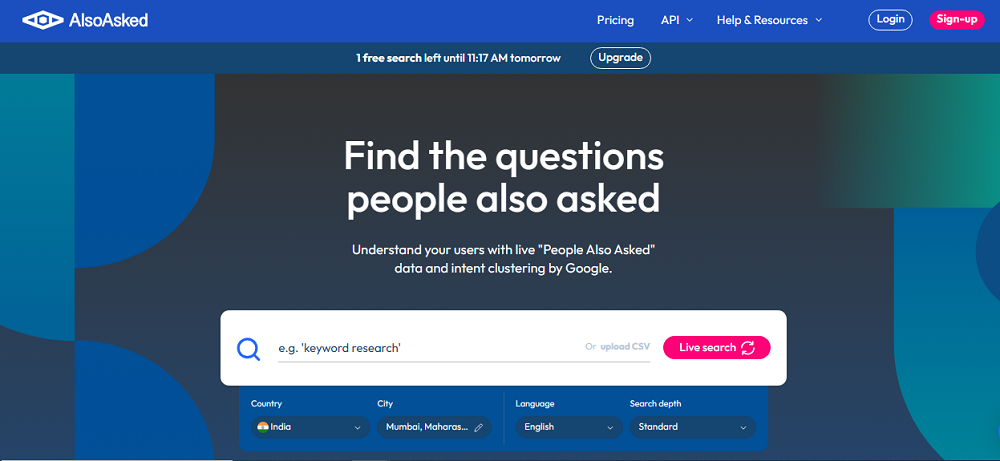
Best for mapping question journeys around a topic.
Also, content “scores” can mislead you if you treat them like a final answer. This Search Engine Land analysis of content scoring limits explains why.
How PASF Helps You Understand URL Structure And Search Intent
Understanding the difference between URL and search query helps you see why Google shows PASF. When someone types a keyword in the browser address bar, Google treats it as a search query, not a direct web address.
A clean URL structure sends people to one specific page. A search query asks Google to choose the best page. PASF mostly supports that second behavior. It gives you “next step” searches that often reveal intent shifts, like moving from learning to comparing, or comparing to buying. That is why PASF terms make great section ideas and supporting posts.
FAQ — People Also Search For On Techeasify
Q1: What does “People Also Search For” mean on Google?
People Also Search For (PASF) is a Google search feature that shows related searches. You often see it after you click a result and return to the results page.
Q2: How is “People Also Search For” different from “People Also Ask”?
People Also Search For shows related search terms. People Also Ask shows expandable questions with short answers directly on the search results page.
Q3: Can I use PASF keywords to rank higher on Google?
Yes. Use PASF terms to find content gaps and cover related subtopics. Add them as new sections, FAQs, or supporting pages, then track changes in Google Search Console.
Q4: Is there a free tool to find “People Also Search For” keywords?
Yes. The simplest free method is using Google itself with the back button behavior that triggers PASF. Google Search Console can also help you find related queries you already get impressions for.
Q5: Does Techeasify cover more SEO tips for beginners?
Yes. Techeasify publishes beginner-friendly SEO guides on keyword research, on-page SEO, and practical Google search features to help you improve rankings step by step.
Conclusion
People Also Search For is a free, visible clue to what readers want next. It helps you find content gaps, add the right sections, and build supporting pages that match real follow-up searches.
Try the workflow today: search, click, back, collect PASF terms, then update your headings or publish a related post. Track the impact in Search Console and double down on what grows.
If you want help turning PASF ideas into a simple, publish-ready plan (topics, sections, and internal links), schedule a quick call with Techeasify
